Can I bulk upload listings to Vinted?
VintHelper lets you create multiple listings from garment photos, review the items and continue with the batch from the extension.
Your clothes are photographed. Now comes the slow part: writing every title, describing each item and filling in the same listing fields again. VintHelper turns that work into one batch. Upload your photos, group them by item and let AI prepare the listings. Review the batch, then save it, send it to Vinted as drafts or publish. Less repetitive typing, more stock ready to sell.
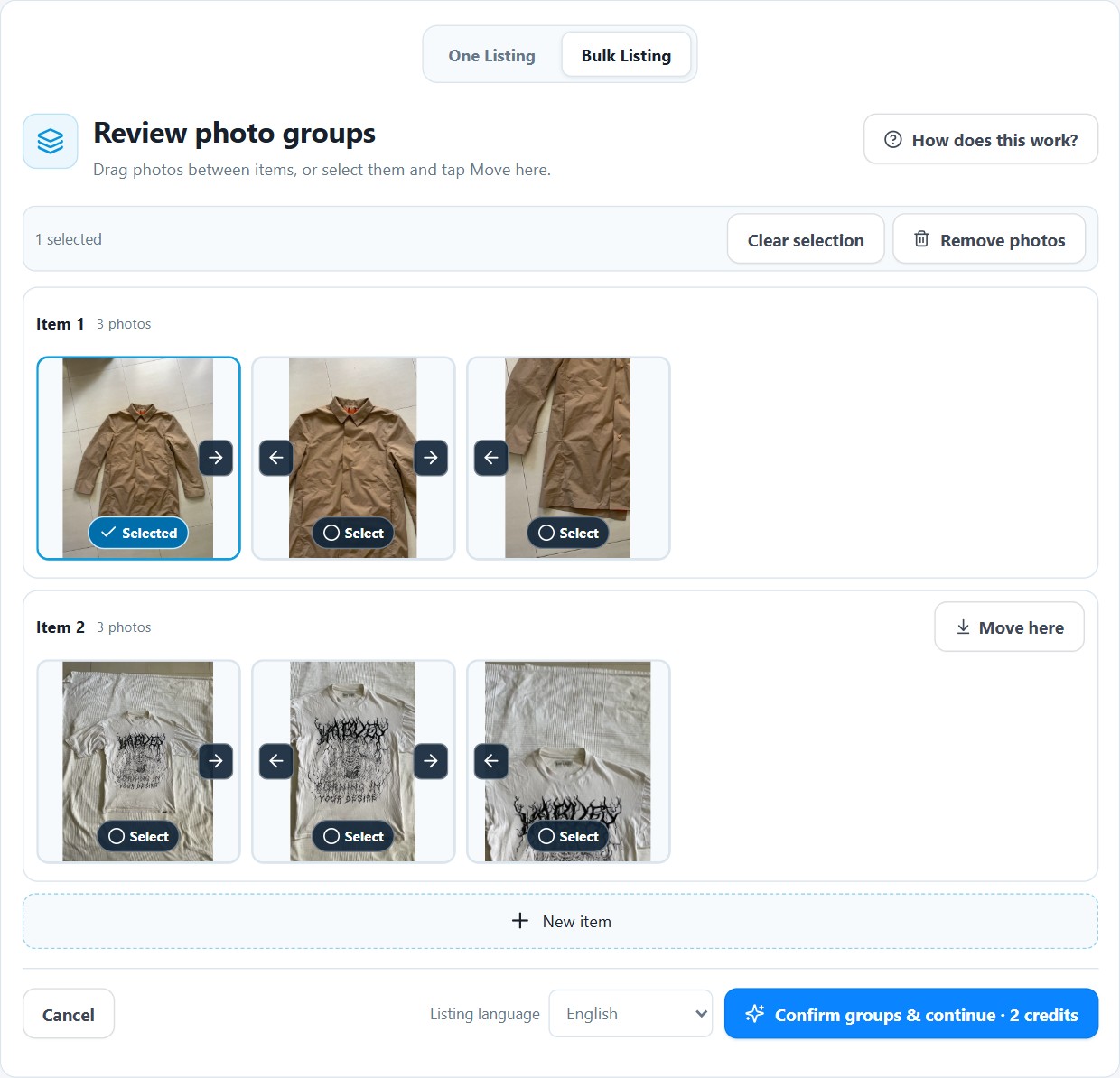
Picture six garments photographed from the front, back and label. Instead of opening six blank forms, add all the images to Bulk Listing in Listing Generator. VintHelper separates the photos into items so you can prepare several listings in one workflow.
Add up to 200 photos per batch, with up to 20 per item. Photos are not listings: five pictures of one jacket still make one item. Work directly from your garment photos instead of building a spreadsheet or copying text between windows.
Check the groups before generating: the jacket with its label, the trousers with their details, and a strong cover photo for each item. Drag a photo into another group, split a group containing two garments and move the best shot to the front.
This preparation carries through the whole batch. A clear label photo supplies useful size, brand and material details, while close-ups show condition. You are turning the photos you already took into listings that answer buyers' questions.
You can also search for similar items on Vinted directly from the review to help set your price. The time saving comes from finishing prepared listings instead of filling in empty forms: one photo session becomes a batch of stock ready for sale.
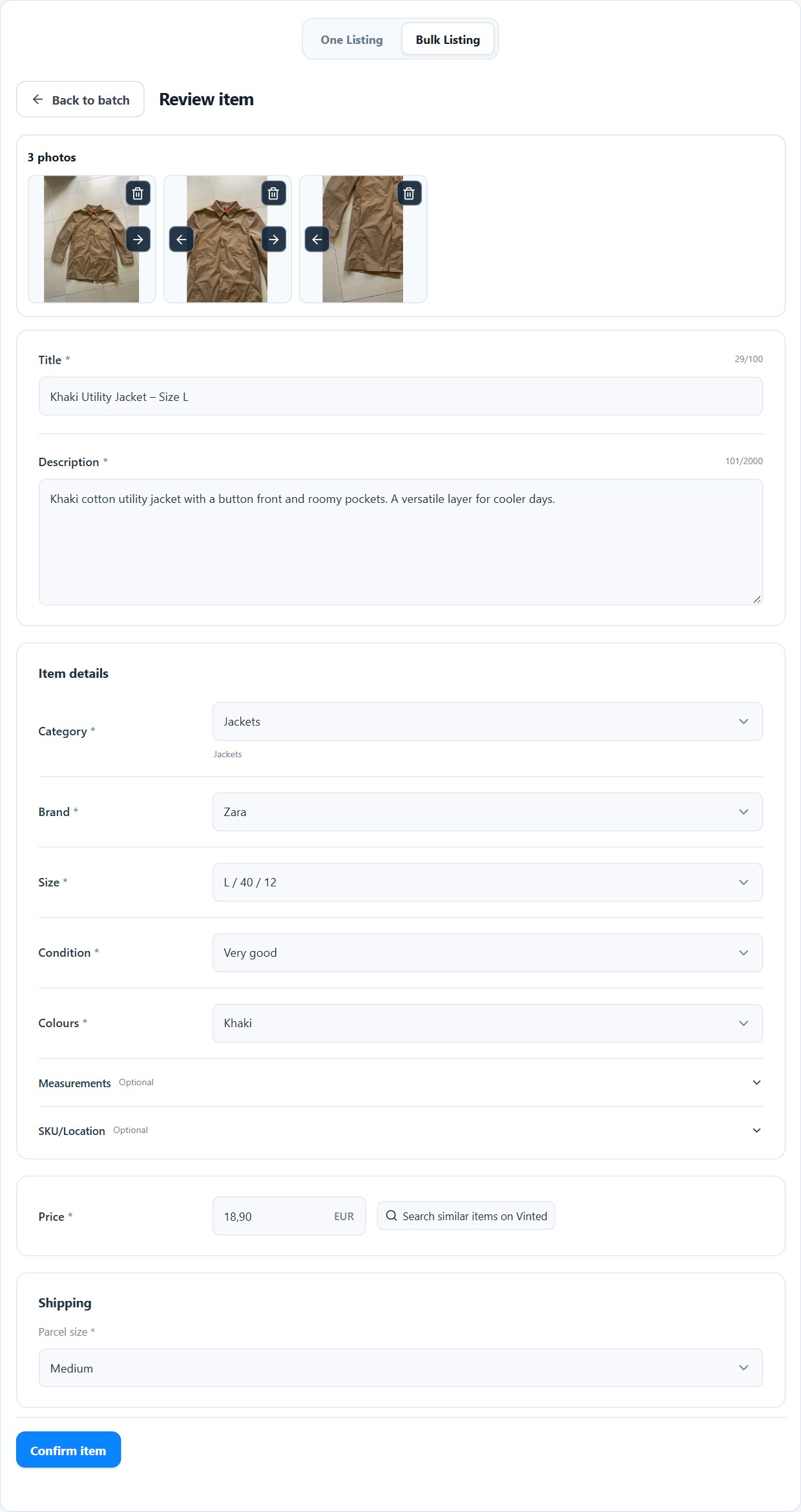
Choose the listing language and let AI prepare titles, descriptions and the details it identifies in the photos. Open each item, adjust the size, category or price and confirm it. Photos and listing details stay together while you finish the batch.
You can also search for similar items on Vinted directly from the review to help set your price. The time saving comes from finishing prepared listings instead of filling in empty forms: one photo session becomes a batch of stock ready for sale.
In the extension, save reviewed items to Backups, create Vinted drafts or publish them. Professional also lets you schedule the batch for a date and time. Items you take forward are saved with their photos in Backups, ready to work with again.
Preparing stock in the web dashboard? Save it to Backups and continue in the extension to publish. Keep Vinted and VintHelper open in your browser for scheduled publishing. Preparing tomorrow's stock today means listing time no longer needs another round of typing.
For resellers, every garment has a workload as well as a margin. Cutting repetitive listing work leaves more time for sourcing, better photos, buyer offers and dispatch. For a wardrobe clear-out, it lets you finish a batch instead of leaving the next pile for another weekend.
VintHelper keeps working after the listing is created: Dressing+ manages your wardrobe, Notifs+ helps with offers to interested buyers and Order+ brings orders and labels together. Install VintHelper and try your first batch with photos you already have.
VintHelper lets you create multiple listings from garment photos, review the items and continue with the batch from the extension.
No. This workflow starts with your garment photos, not a spreadsheet.
Up to 200 photos per batch and 20 per item. Each item group becomes one listing.
Yes. Save them to Backups or create Vinted drafts in the extension. Scheduling is available with Professional.
No. Bulk Listing creates new listings from photos. Dressing+ handles relisting items already in your wardrobe.